
Importing from Jira
Bring your Jira backlog into a room in a few clicks — no copy-pasting required.
PlanPoker connects directly to your Jira account via the Atlassian API. Once your credentials are saved, you can fetch issues from any project, pick the stories you want to estimate, and import them into the room instantly — all without leaving PlanPoker.
How to Import Stories from Jira
Open the Import Panel
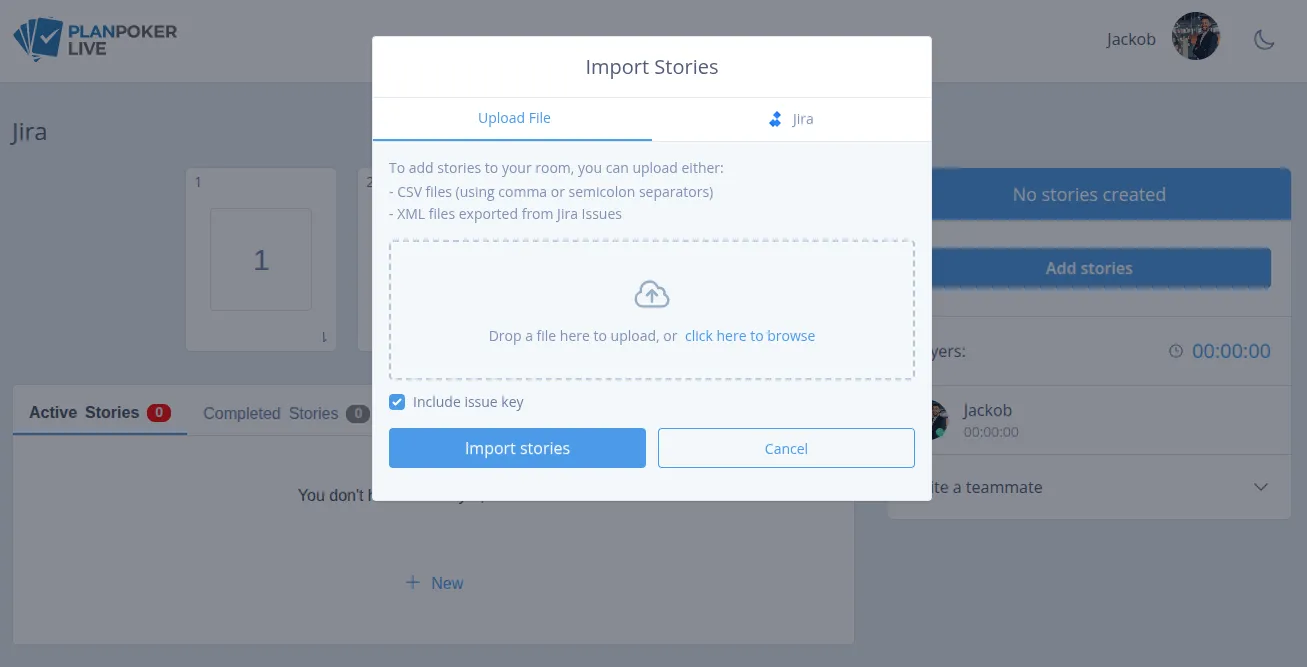
Inside any room, click the Import button above the stories list. A popup will appear with two tabs: Upload File and Jira. Click the Jira tab to switch to the Jira import flow.
Connect Your Jira Account
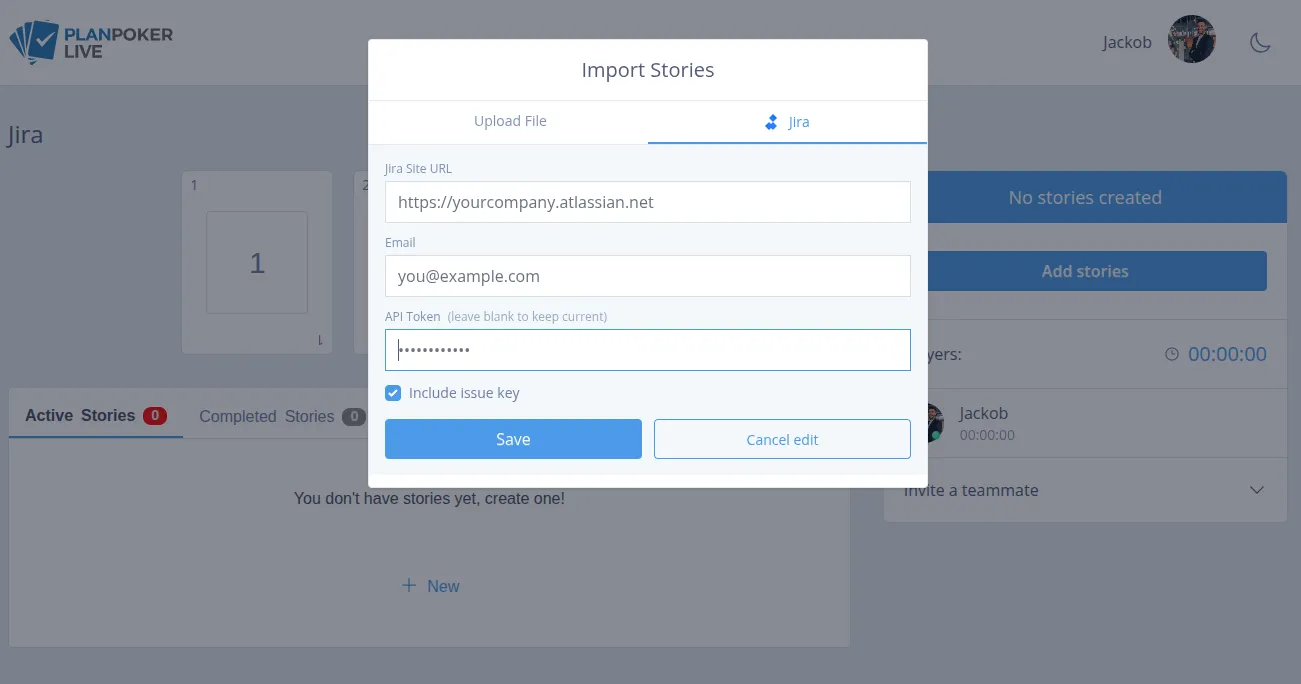
The first time you open the Jira tab, you will be asked to enter three things: your Atlassian site URL (e.g. yourcompany.atlassian.net), the email address on your Atlassian account, and an API token. Your settings are saved automatically — you only need to do this once.
Generate an Atlassian API token ↗Pick a Project
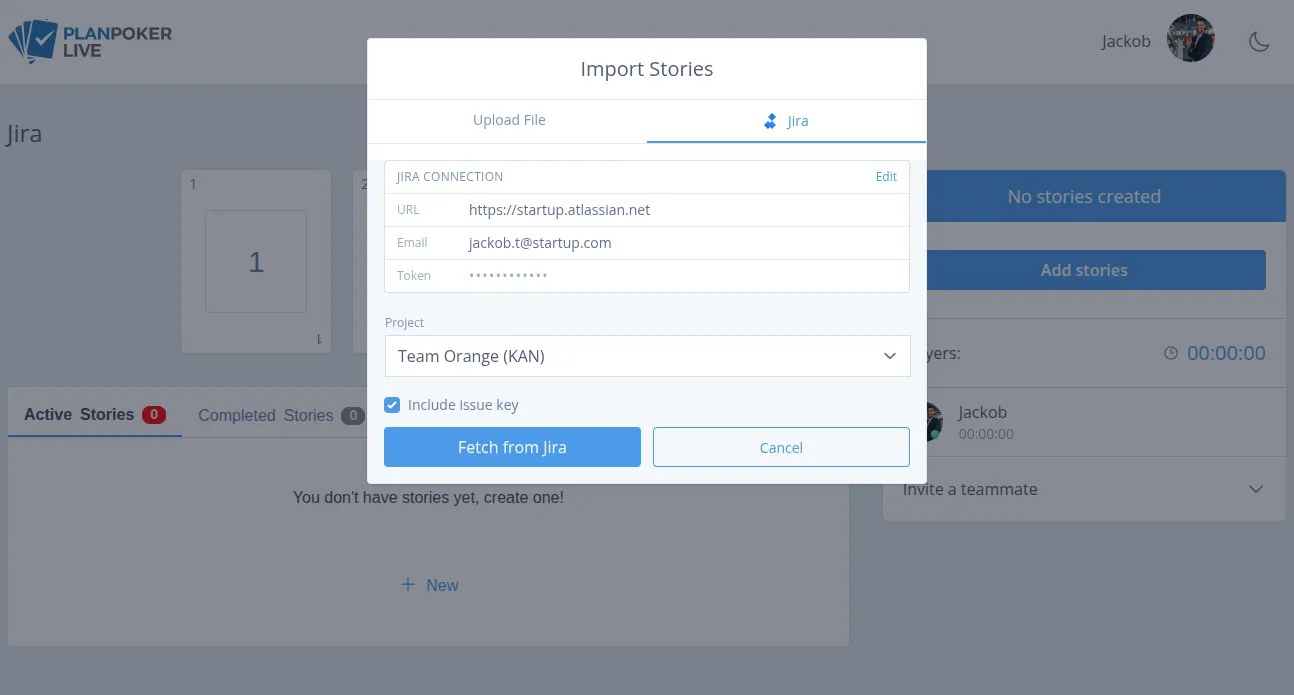
After connecting, PlanPoker loads all projects your account has access to and shows them in a dropdown. Select the project you want to estimate from, then click Fetch from Jira.
Select Stories to Import
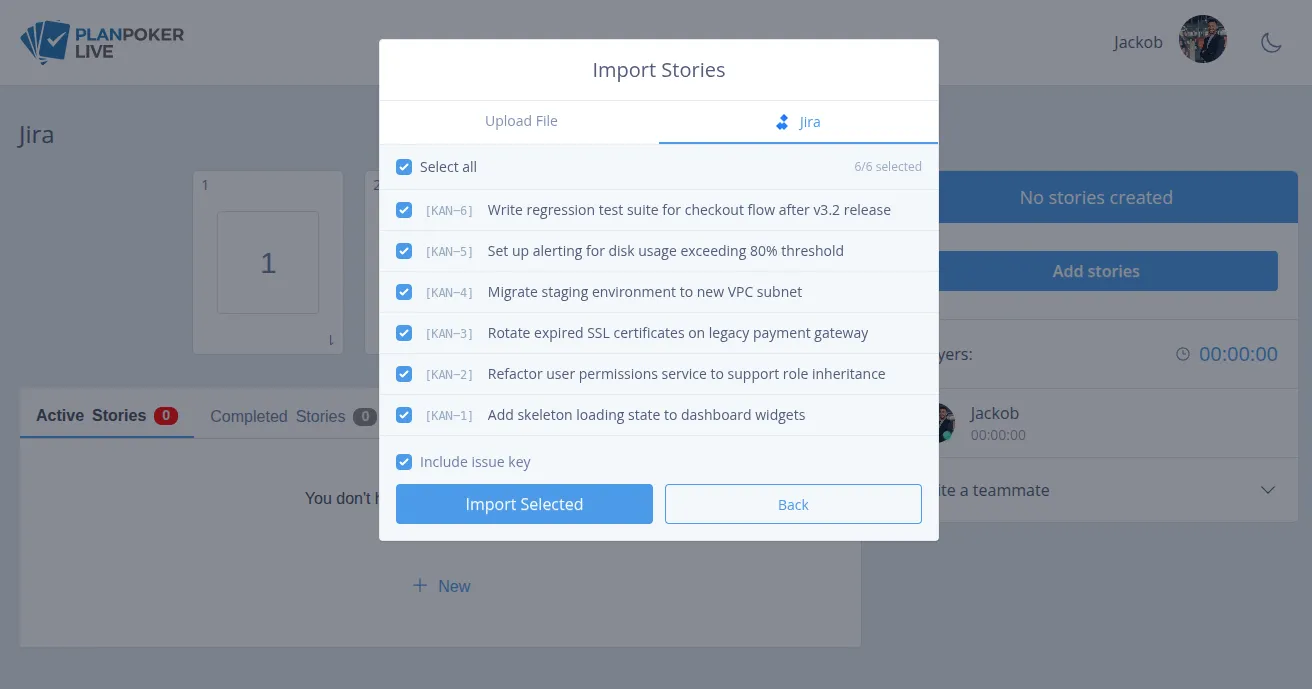
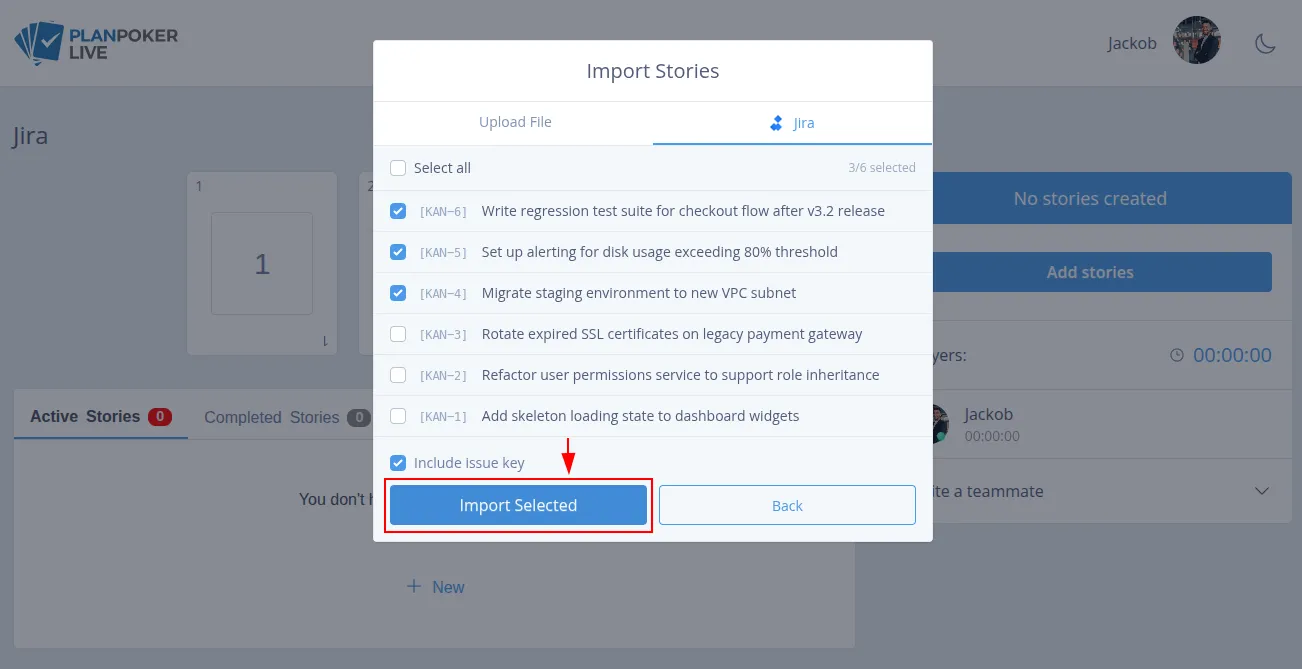
Issues from the project are loaded as a list with checkboxes. All stories are selected by default. Uncheck any you want to skip, or use Select All to toggle everything at once. You can also enable Include issue key to prefix each story name with the Jira issue key — useful for tracking estimates back in Jira later.
Import and Start Estimating
Click Import Selected. The chosen stories are added to the room immediately — no page reload needed. Your team can start voting straight away.
Tips
- Your Jira credentials are stored securely on your account and reused on every import. If you need to update them, open the Jira tab and click Edit next to the saved connection.
- You can run multiple imports into the same room. New stories are added after existing ones without removing anything already in the room.
- The API token is different from your Atlassian account password. Generate one at id.atlassian.com under Security → API tokens.
Prefer File Imports?
If you would rather not connect via API, you can export issues directly from Jira and upload the file instead.
CSV Export
Export your backlog from Jira as a CSV file. PlanPoker reads the header row to detect the Summary and Issue Key columns automatically. Column order does not matter, and both comma and semicolon separators are supported.
XML Export
Export issues from Jira as an XML file. PlanPoker parses the issue keys and summaries from the standard Jira XML format and creates stories in your room immediately.
Ready to Import Your Backlog?
Create a free account and connect Jira in under a minute.